Academy
How to Turn a Picture Into a Cross Stitch Pattern
By Threadhood Content Team · · 9 min read
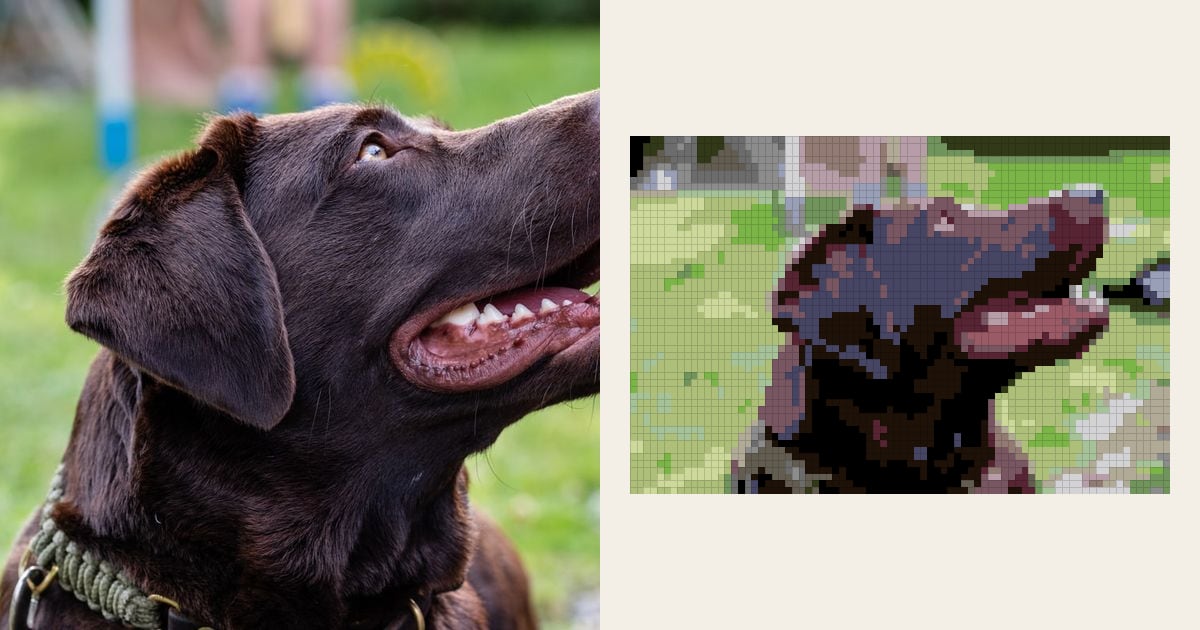
You have a photo you love: a dog, a garden, a grandchild on a beach. You want to stitch it. But the charts on Etsy are other people's pictures, and drawing your own grid by hand would take a week of evenings.
Here's the good news. You can turn a picture into cross stitch in about ten minutes, and you can do it free. This guide walks through the six steps, using one real photo from start to finish.
The proof is below. We ran a chocolate Labrador photo through the Threadhood pattern maker and wrote down every number: stitches, threads, skeins and the two mistakes we had to fix.
What you need before you start
Not much. You need a photo, a phone or computer, and about ten minutes.
You don't need software to install. The cross stitch pattern maker runs in your web browser. It makes the chart on your device, so your photo is not uploaded anywhere.
You also need the right to use the photo. That sounds dull, but it matters if you ever plan to share or sell the pattern. The U.S. Copyright Office puts it plainly:
"Your work is under copyright protection the moment it is created and fixed in a tangible form that it is perceptible."
U.S. Copyright Office, Copyright FAQ
So a photo you took is yours. A photo from a stranger's Instagram is not. For this guide we used a CC0 photo from Wikimedia Commons. CC0 means, in Creative Commons' own words, "free use of their work for any purpose" with "no permission requests required."

How do I turn a photo into a cross stitch pattern?
Six steps. Here they are with what happened to our dog at each one.
Step 1: Pick a photo with one clear subject
The best photos have one subject, a sharp focus point and light from one side. Our Labrador photo has all three: one dog, a sharp eye, and sun coming from the right.
Busy backgrounds are the enemy. A converter spends its colors on whatever fills the frame. If half the photo is a park, half your threads will be park.
Step 2: Crop it tight
Crop until the subject fills most of the picture. We left our dog photo as it was, so you can see what happens with some lawn in the shot. Spoiler: the busiest thread in the whole chart was grass green.
Our guide to choosing a photo has side-by-side examples of the same picture at different sizes.
Step 3: Open the pattern maker and choose your photo
Open the Threadhood pattern maker and tap Choose a photo. Pick the file from your phone or computer.
The chart appears in a few seconds. It uses the default settings: 80 stitches wide, up to 20 colors, DMC thread, and Tidy lone stitches switched on.
Step 4: Set the width and the number of colors
This is where you trade detail against time. Here's what our dog photo gave at two settings:
| Setting | Stitches | Threads | Size on 14-count Aida | Fabric to cut (3 in margin) |
|---|---|---|---|---|
| 80 wide, 20 colors (default) | 4,240 (80 x 53) | 20 | 5.7 x 3.8 in (14.5 x 9.6 cm) | 11.7 x 9.8 in |
| 120 wide, 30 colors | 9,600 (120 x 80) | 30 | 8.6 x 5.7 in (21.8 x 14.5 cm) | 14.6 x 11.7 in |
Table 1. One chocolate Labrador photo, two settings. Figures from the Threadhood converter, run on 22 October 2026.
At 80 wide it's clearly a dog looking up. At 120 wide there's room for more detail around the eye and mouth. You also get more than double the stitching.
A rough guide that works for most photos:
- Bold shapes (a flower, a logo, a cartoon): 40 to 80 stitches wide.
- Pets and animals: 80 to 120 wide.
- Human faces: 100 wide or more, or they look like someone else.
The Colors slider sets the most threads the chart may use. Our dog looked right at 20. If your chart looks muddy, try fewer colors before you try more. Fewer, clearer colors often read better.
Step 5: Read the key and fix odd threads
Don't skip this one. This is the step that separates a good chart from a disappointing one.
Our dog is chocolate brown. But the key listed these as the fourth, fifth and tenth busiest threads:
- DMC 791 Cornflower Blue Very Dark: 373 stitches
- DMC 3740 Antique Violet Dark: 271 stitches
- DMC 154 Grape Very Dark: 142 stitches
Why? Sunlight on dark fur reflects the blue sky. In the photo it reads as a cool sheen. Measured square by square, those patches really are closest to blue and violet threads. Stitched, they might look like bruises.
The fix takes a few taps. Tap the thread in the key, choose Swap for another thread, and pick a replacement. The list starts with the closest colors, or you can search by number or name. We swapped 791 and 154 and kept 3740 for a little shine. That's a judgement call only you can make, because you know what your dog looks like.
You can also tap a background thread and choose Don't stitch it, leave bare fabric. That's handy for plain skies and walls.
Step 6: Download or save your chart
Tap Download for a chart and key as an image. It has a symbol for each thread, a bold line every 10 stitches, numbered edges and center marks.
Or tap Save chart to keep it in a free account. Free accounts hold three charts.
How much thread does a photo cross stitch need?
Less than you might fear, at this size. Here are the six busiest threads in our 80-wide dog chart:
| Symbol order | DMC thread | Stitches | Skeins (14-count, 2 strands) | Closest Anchor | Match |
|---|---|---|---|---|---|
| 1 | 471 Avocado Green Very Light | 929 | 1 | 264 | very close (ΔE 1.7) |
| 2 | 3371 Black Brown | 469 | 1 | 382 | approximate (ΔE 8.3) |
| 3 | 310 Black | 408 | 1 | 403 | exact (ΔE 0.0) |
| 4 | 791 Cornflower Blue Very Dark | 373 | 1 | 941 | approximate (ΔE 7.8) |
| 5 | 3740 Antique Violet Dark | 271 | 1 | 871 | approximate (ΔE 5.2) |
| 6 | 703 Chartreuse | 236 | 1 | 238 | close (ΔE 4.1) |
Table 2. Busiest six of 20 threads. ΔE is the CIEDE2000 color difference between the DMC thread and its nearest Anchor thread.
Every one of the 20 threads needed a single skein. A skein of six-strand cotton is 8 m long. Stitching with two strands on 14-count Aida, one skein covers about 1,826 full crosses, allowing half again for tails and travel. Our busiest thread used 929 stitches, about half a skein.
The floss calculator works this out for any stitch count, fabric and number of strands.
Notice row 2. DMC 3371 Black Brown has no close twin in the Anchor range. The nearest, Anchor 382, is 8.3 apart. That's a different color to the eye. If you stitch with Anchor, set Thread brand to Anchor before you start, rather than converting a DMC list afterwards. Our DMC to Anchor chart flags every color like this.
Common mistakes when you turn a picture into cross stitch
These are the ones that show up most in our own test charts.
- Charting the whole photo. Crop first. Our uncropped dog photo spent its busiest thread on lawn.
- Going too small for a face. Under about 100 stitches wide, faces lose who they are.
- Adding colors to fix mud. It usually makes it worse. Try fewer colors, or a bigger width.
- Trusting the key blindly. Shine and shadow become odd colors. Read every row.
- Switching on Blend colors for everything. Blending (dithering) suits skies and skin. On fur and edges it scatters single stitches, and every single stitch means a start and a finish.
- Buying thread from a converted list. If you stitch Anchor, chart in Anchor. Conversions lose accuracy on colors like 3371.
A real example: what we changed on the dog chart
Here's the dog chart, in the order we worked on it. It shows what it really takes to turn a picture into cross stitch you'd want to hang on a wall.
The default chart came back with 20 threads and 4,240 stitches. The converter's clean-up had already changed 149 lone stitches to match their neighbors, which left just 2 single stitches in the whole chart. That's a chart you can stitch in blocks, not one cross at a time.
Then we read the key, top to bottom. Grass took the top slot, which told us the crop was too loose. The blue and violet threads in the fur were the next problem. We searched for 838 and swapped DMC 791 Cornflower Blue Very Dark for DMC 838 Beige Brown Very Dark. Then we swapped DMC 154 Grape Very Dark for 3371 Black Brown, which was already in the chart, so the two merged: 3371 went from 469 stitches to 611. We kept 3740 Antique Violet Dark as a highlight on the head.
The chart now had 19 threads. With Fabric at 14-count Aida and Strands at 2, the line under the key read "19 skeins in all, with 2 strands on 14-count Aida." That's the shopping list. If some of those colors are already in your stash, you only buy the rest.
That's the real advantage of making your own pattern. You can design around the thread you already own. To plan a whole kit, fabric and all, read our step-by-step kit list for making your own pattern.
Is a cross stitch pattern maker better than drawing by hand?
For photos, yes. When you turn a picture into cross stitch by hand, a 4,240-square chart means judging 4,240 colors. A cross stitch pattern generator measures each square, then picks from 489 real DMC colors, and does it in seconds.
For simple shapes and lettering, hand drawing can still win. You control every stitch. Many stitchers do both: they start from a generated chart, then tidy the edges by eye.
If you want to see what each setting really does, we tested width, colors and blending on one photo in our pattern generator settings test.
Frequently asked questions
Can I turn a picture into a cross stitch pattern for free?
Yes. The Threadhood pattern maker is free, runs in your browser and needs no account. You can make as many charts as you like, download them as images and save three to your account. Saving more charts and the printable PDF kit come with the paid Studio plan.
What size should a cross stitch from a photo be?
For a pet or a face, start at 80 to 120 stitches wide. Our dog photo looked like a dog at 80 wide and showed eye and mouth detail at 120. On 14-count Aida, 80 stitches is about 5.7 inches and 120 is about 8.6 inches.
How many colors should a photo cross stitch use?
Most photos look right with 15 to 30 colors. Each color is a skein to buy and a thread to start and finish. Go higher only for soft gradients like skies or skin.
Do I need to upload my photo?
No. Threadhood makes the chart on your own phone or computer, so the photo never leaves your device. Only a chart you choose to save is stored.
Why does my chart use strange colors?
The converter matches each patch of the photo to the nearest real thread by measured color. Shine and shadow can be cooler than you expect, so brown fur may pick up violet or blue. Tap the thread in the key and choose Swap for another thread to fix it.
Try it with your own photo
The pattern maker runs in your browser. No account, no upload, and you see the chart in seconds.
Open the cross-stitch pattern maker